

Ritual Management - Grand Org
This document outlines the Ritual feature within Grandview.
Log in to your system and navigate to the gears -> System Configuration -> Ritual System
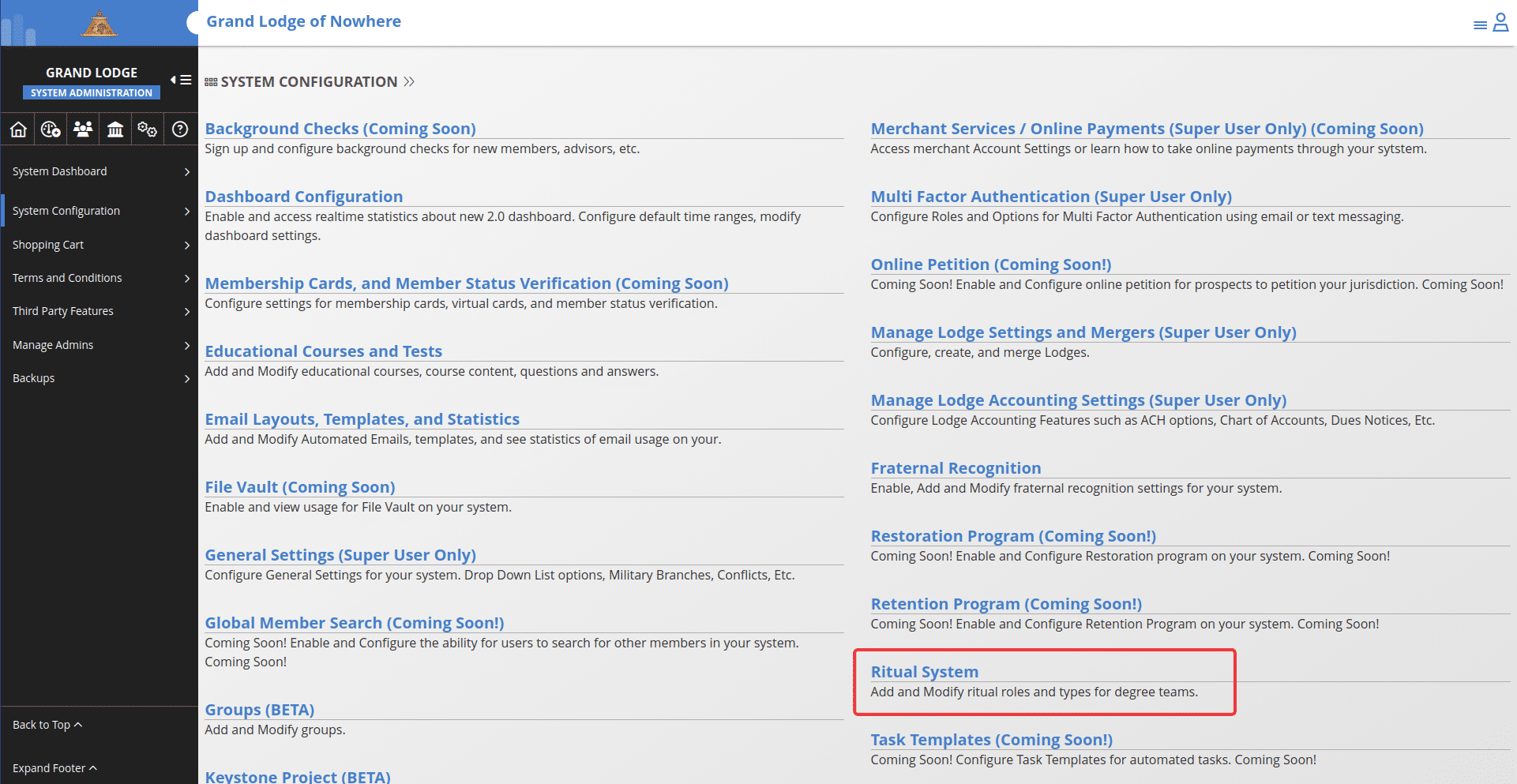
Create a Ritual
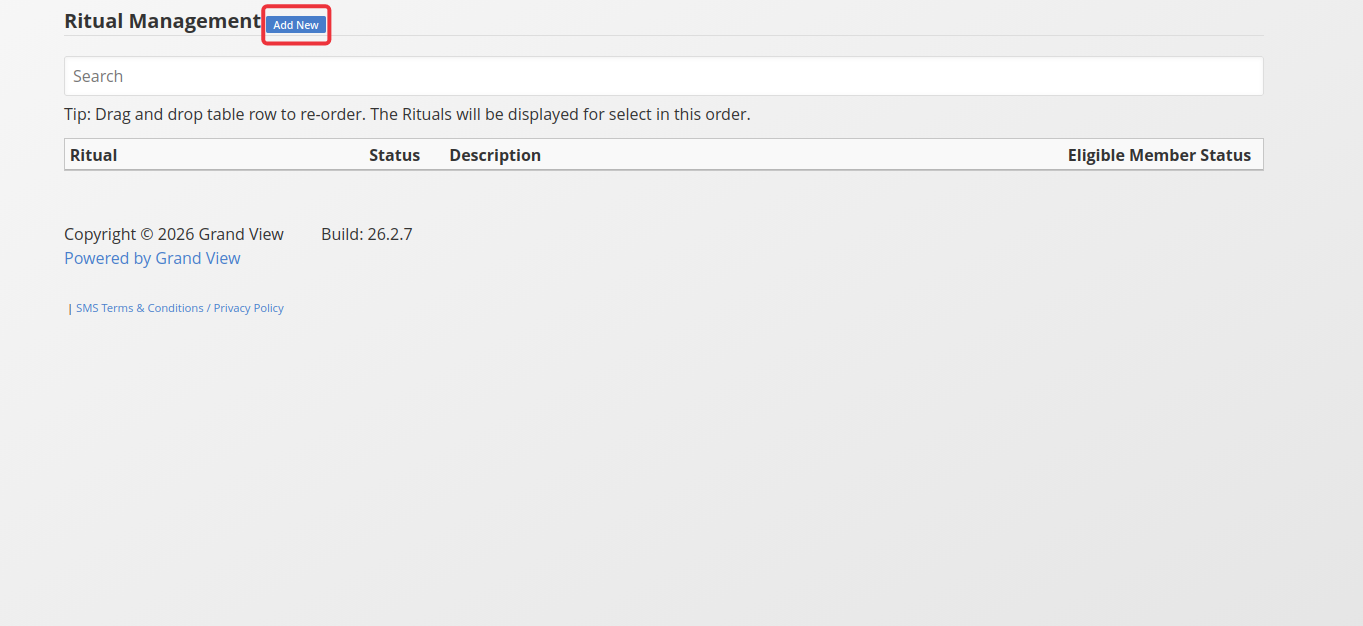
To create a new Ritual, click the "Add New" button.
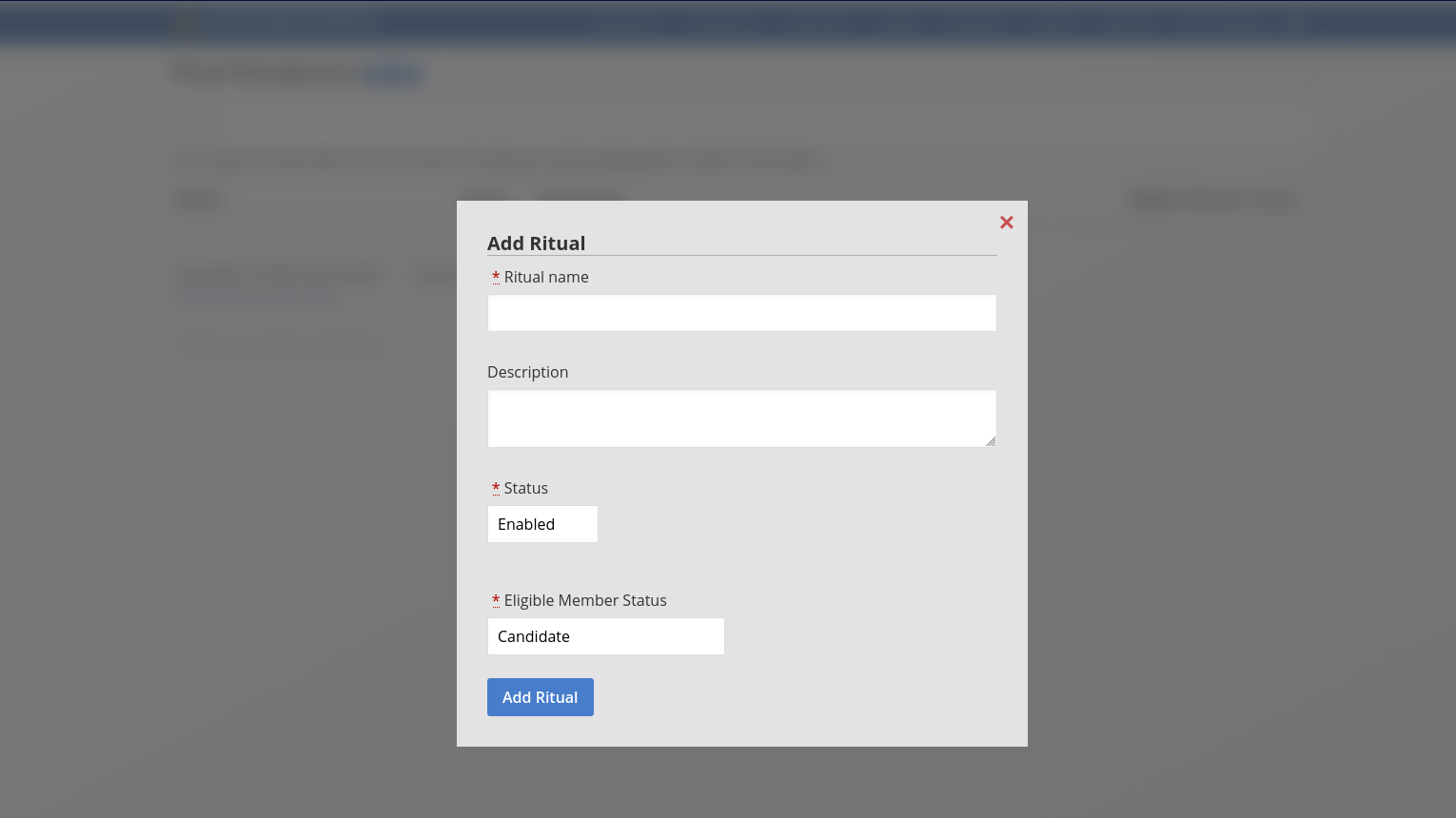
Enter the information for the new Ritual: Ritual Name - This is what name the Ritual will be saved under Description (optional) - This is where you can type a short description of the Ritual Status (Enabled/Disabled) - This controls if the Ritual shows up in the system for use with events or for a member to fill out the Ritual parts that they are comfortable with Eligible Member Status - This option sets what member status this ritual is available to. For example, if you were wanting to create the Entered Apprentice degree as a Ritual, you would set the eligible member status to "Candidate" Once you have filled out the form, click the "Add Ritual" button.
After you click the "Add Ritual" button, you will be taken to the created Ritual. To add parts to the Ritual, click the "Add Ritual Part" button.
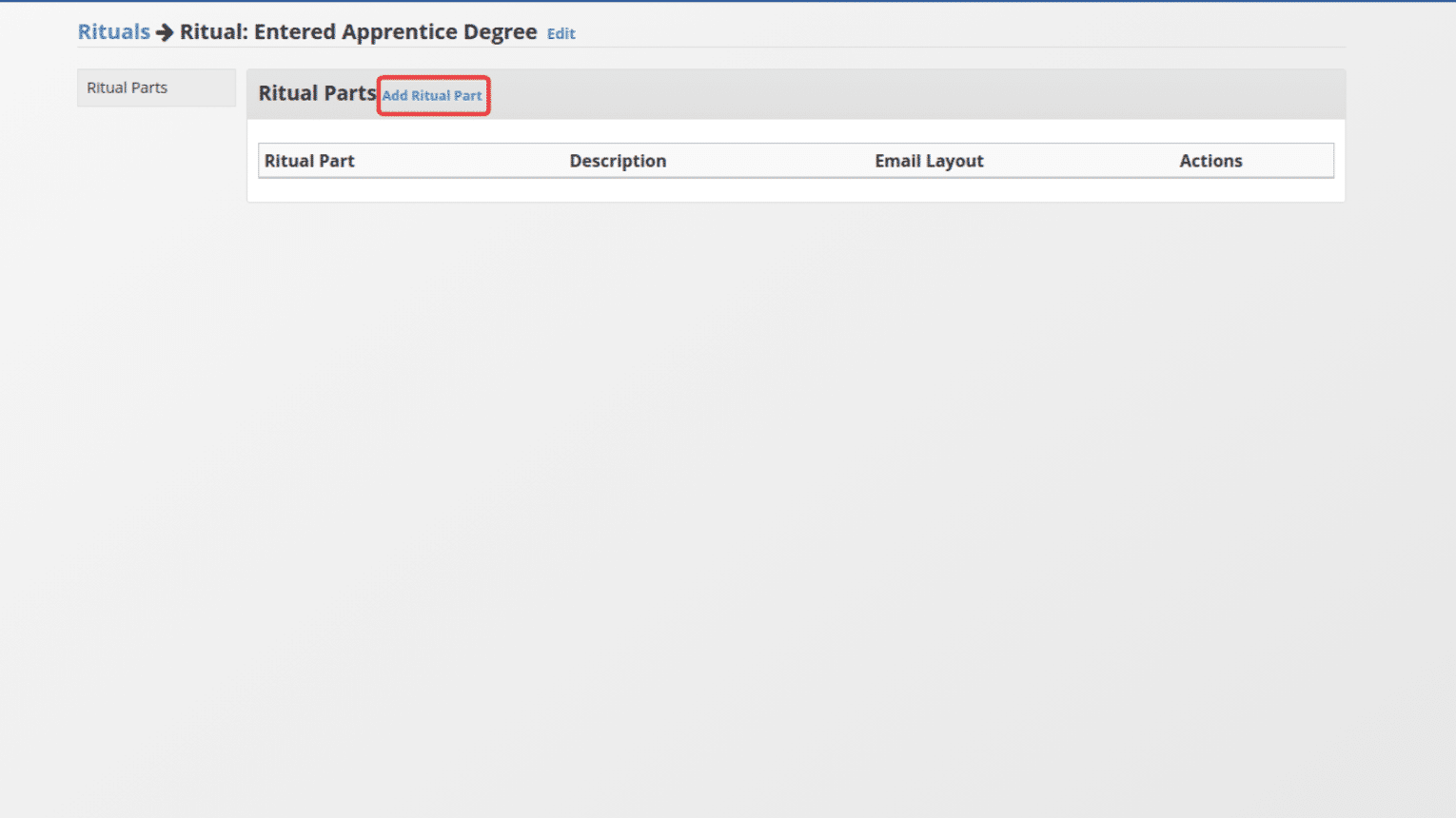
Ritual parts are the individual parts of the ritual that a member can take part in. After the parts have been added, members will be able to update their preferences to show what parts they are willing to perform as well as the distance they are willing to travel to perform that part.
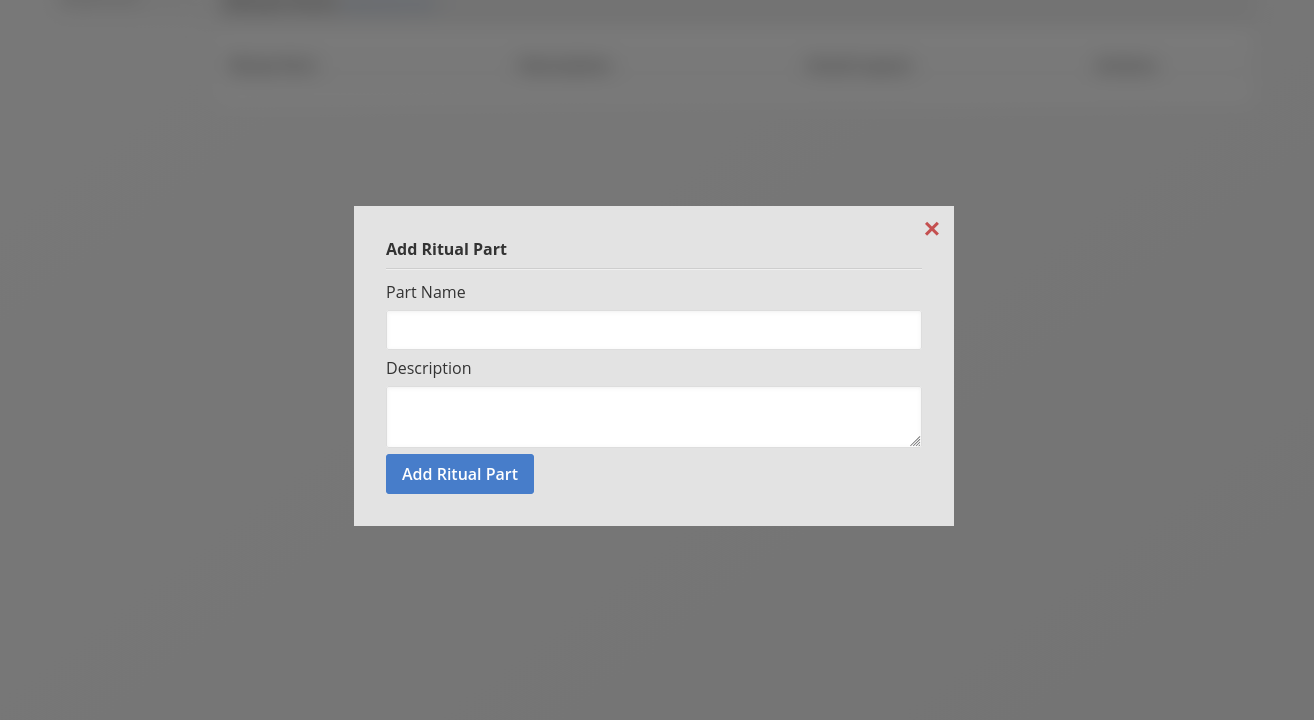
Enter a name for the Ritual part. The description is optional. Once you have entered the info how you like, click the "Add Ritual Part" button to create the Ritual part.
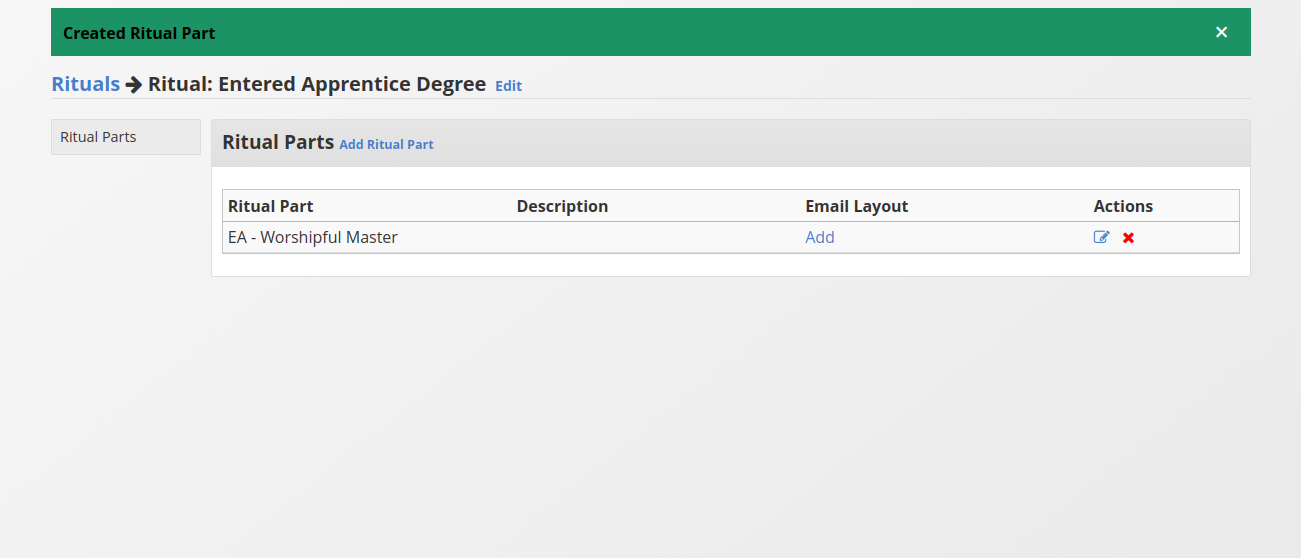
You will be redirected back to the Ritual. The Ritual part will have a few options. Email Layout - You can create and manage email layouts for this Ritual part Actions - You can edit the part by clicking on the notepad icon under actions or delete it by using the red X button.
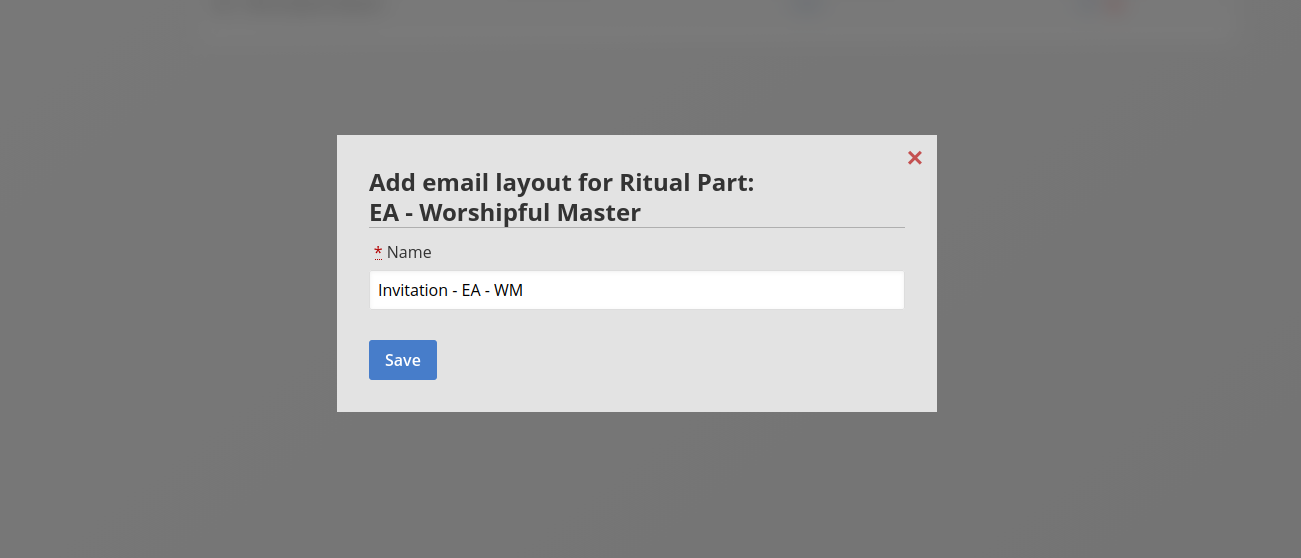
Click the "Add" button on the ritual part to add an email layout for the ritual. Name the email layout something meaningful to the ritual part. When you are done, click the "Save" button.
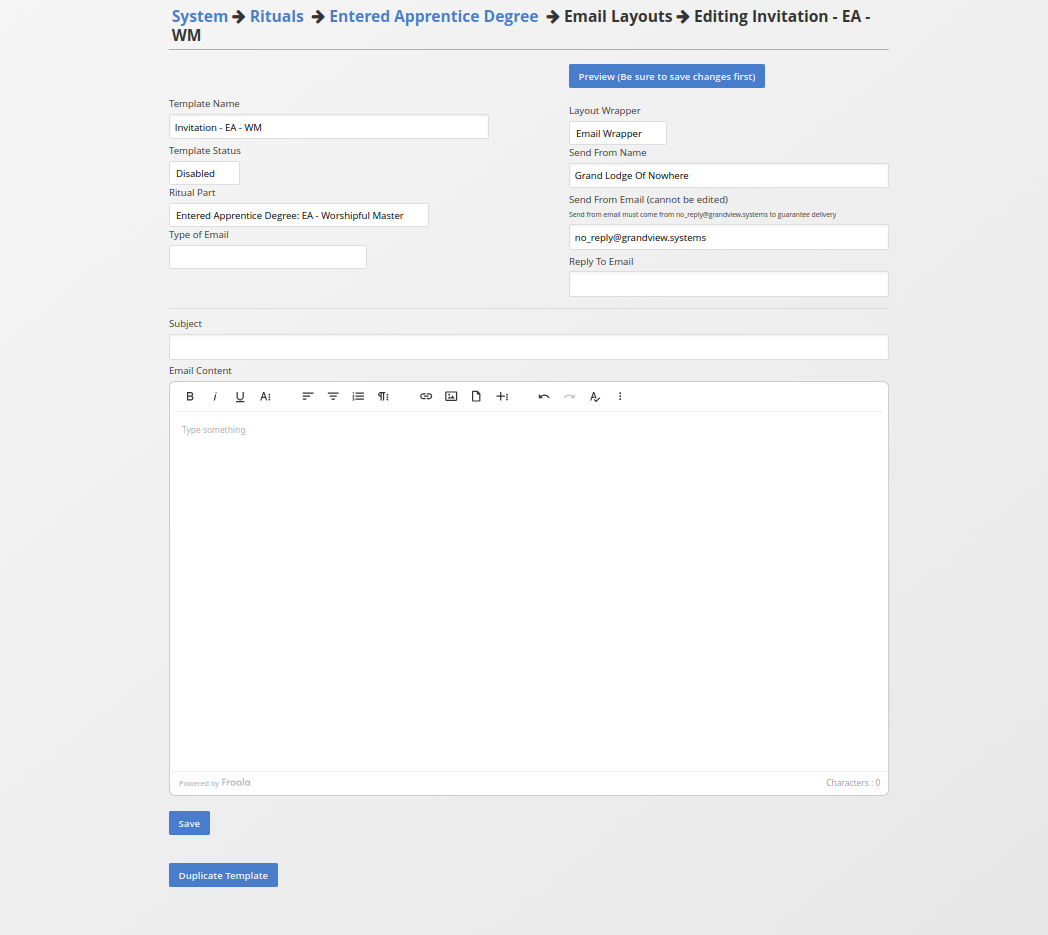
Once you click save on the previous step, you will be taken to the newly created blank email layout. At the very bottom, below the "Save" and "Duplicate Template" button, you will find a merge variable reference to build out the email layout how you like. To make the layout active, change the "Template Status" from disabled to enabled and select the type of email this layout is for. Currently there are only two options:
- Invite member to perform Ritual Part
- Withdraw Invitation
Email layouts can be utilized to invite a member to play a part that they are willing to perform. The "Invite member to perform Ritual Part" type will send an email out to any members invited to perform a part in a Ritual event. The "Withdraw Invitation" type will send the email to a member who was previously invited to perform a ritual part if the event gets cancelled or if they have filled that role a different way.