

Batch Close Annual Returns
This guide walks you through the process of batch closing annual returns in the Operations Dashboard. Learn how to select a return period, view draft reports, and efficiently close returns in groups of 10 using the batch close feature, with tips for best practices to ensure smooth processing.
Navigate to the Operations Dashboard
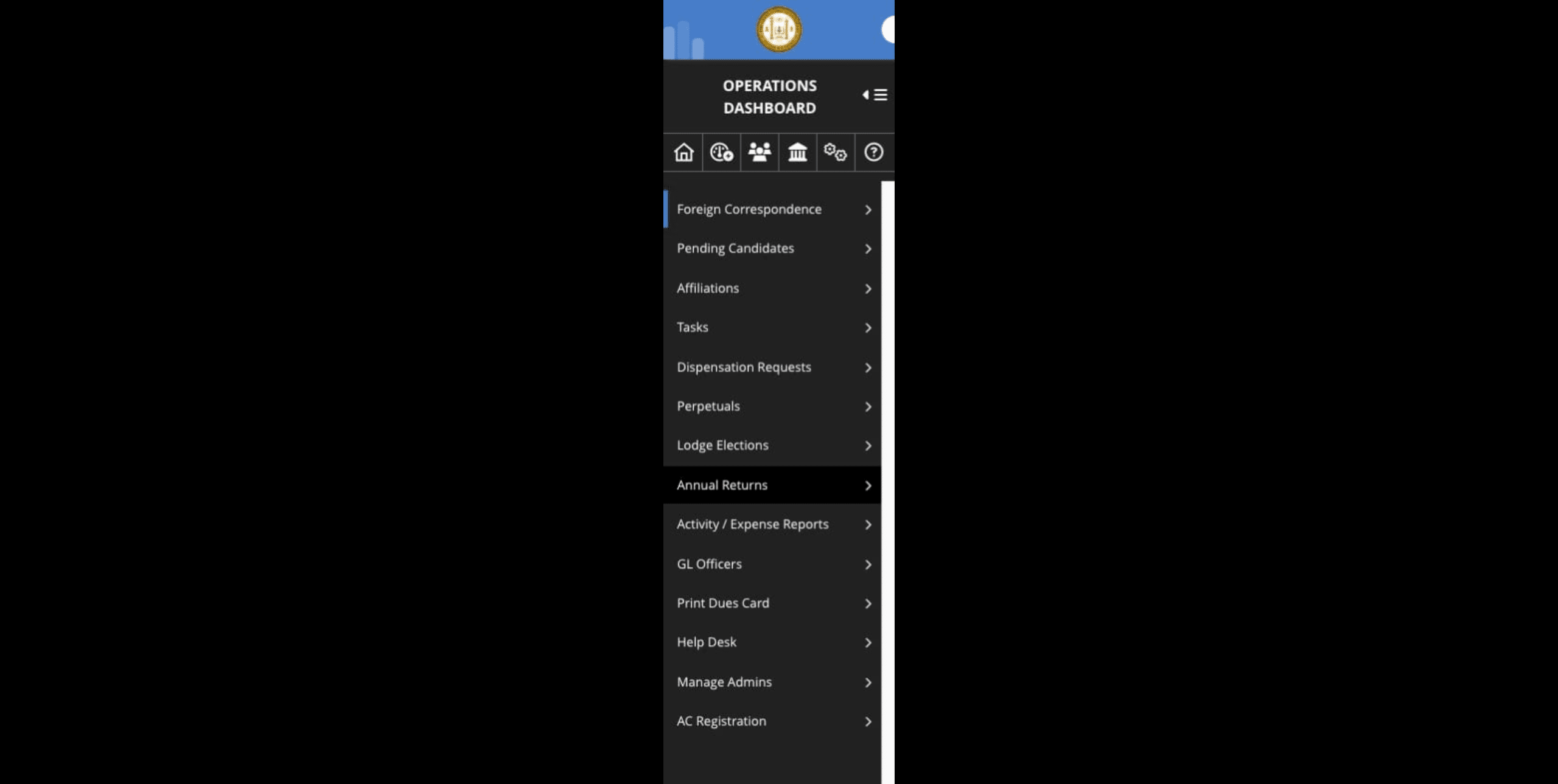
Click on "Annual Returns"

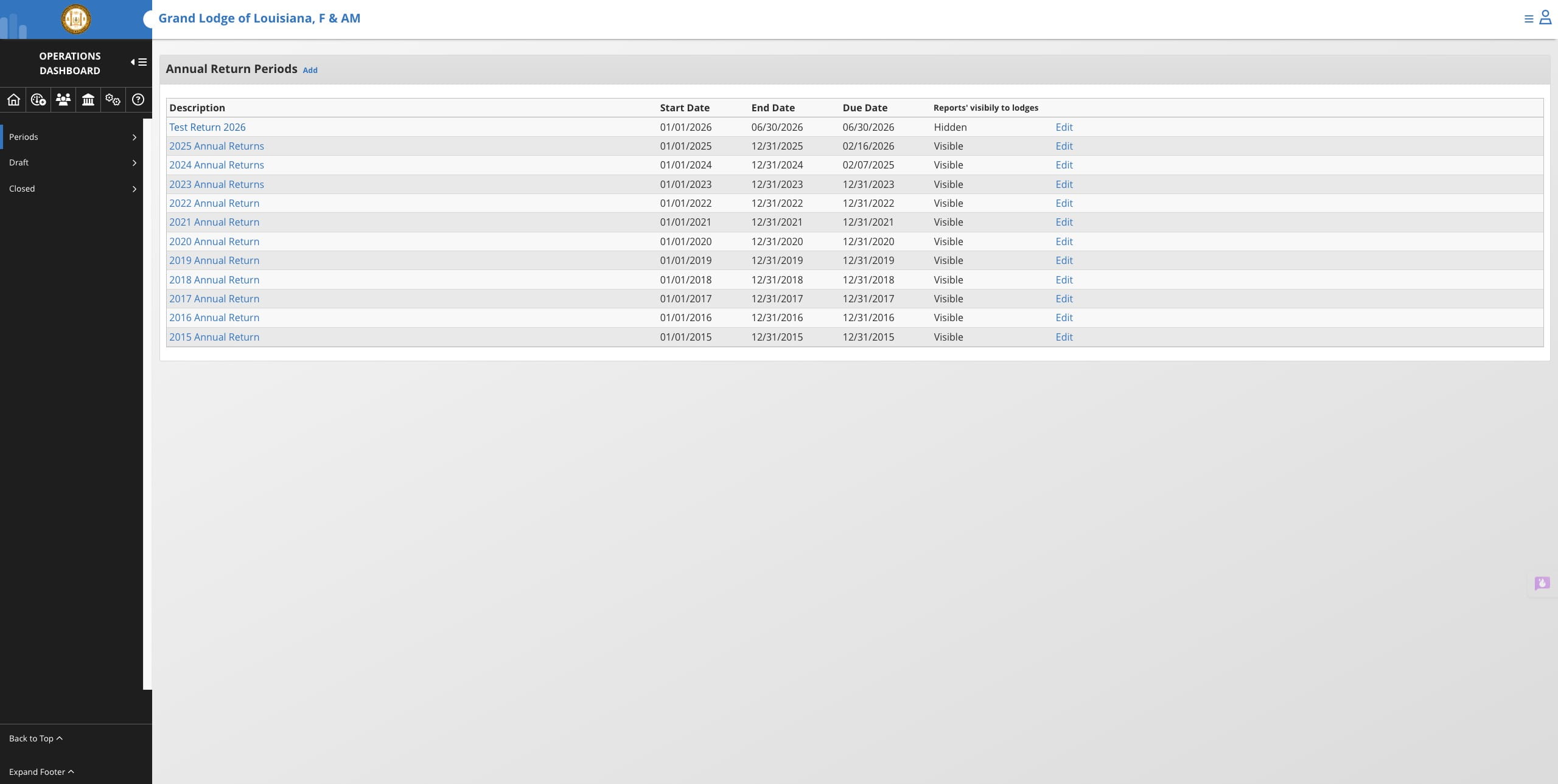
Select the return period you wish to close
Click on Draft Reports to view reports
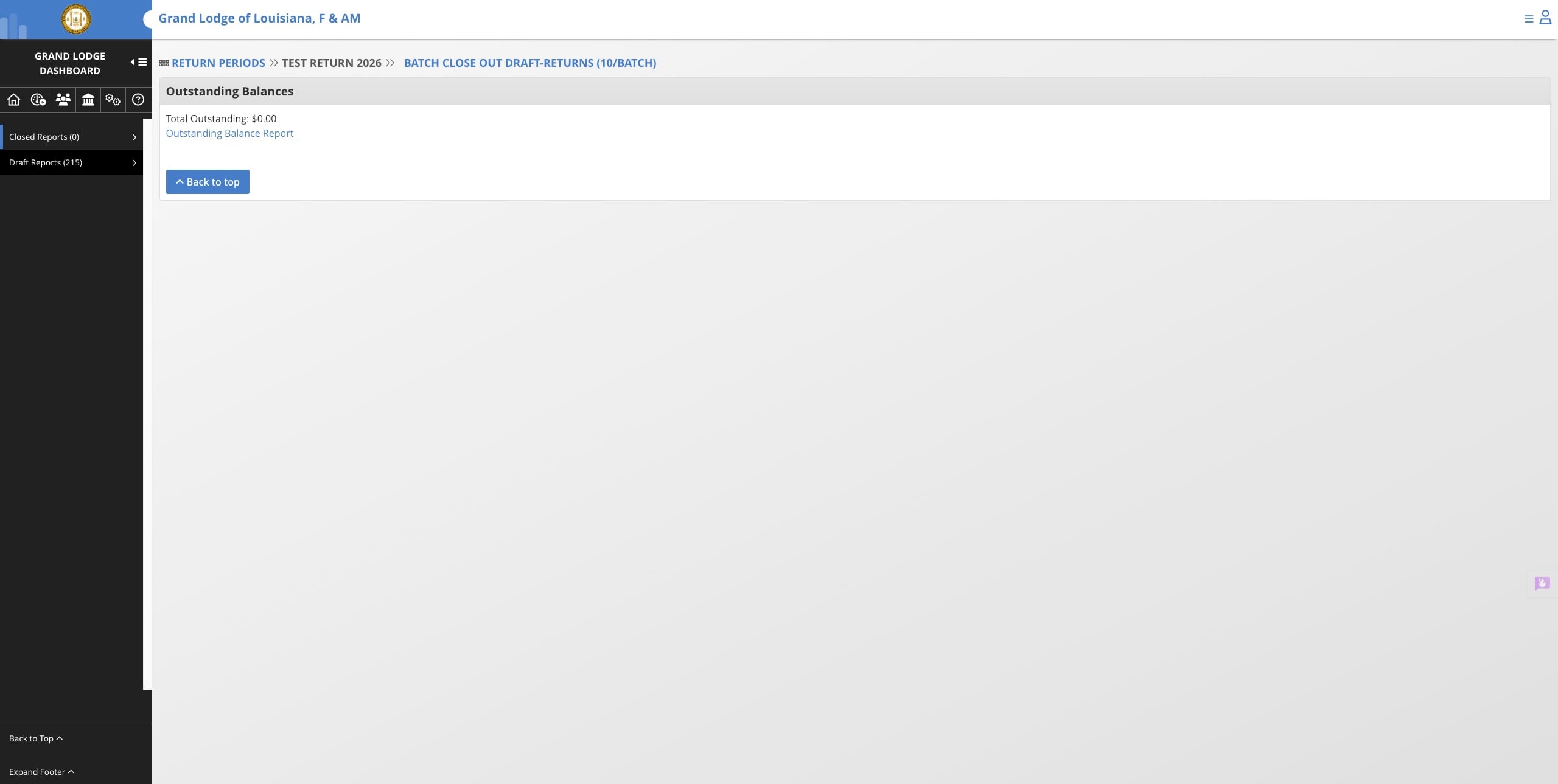
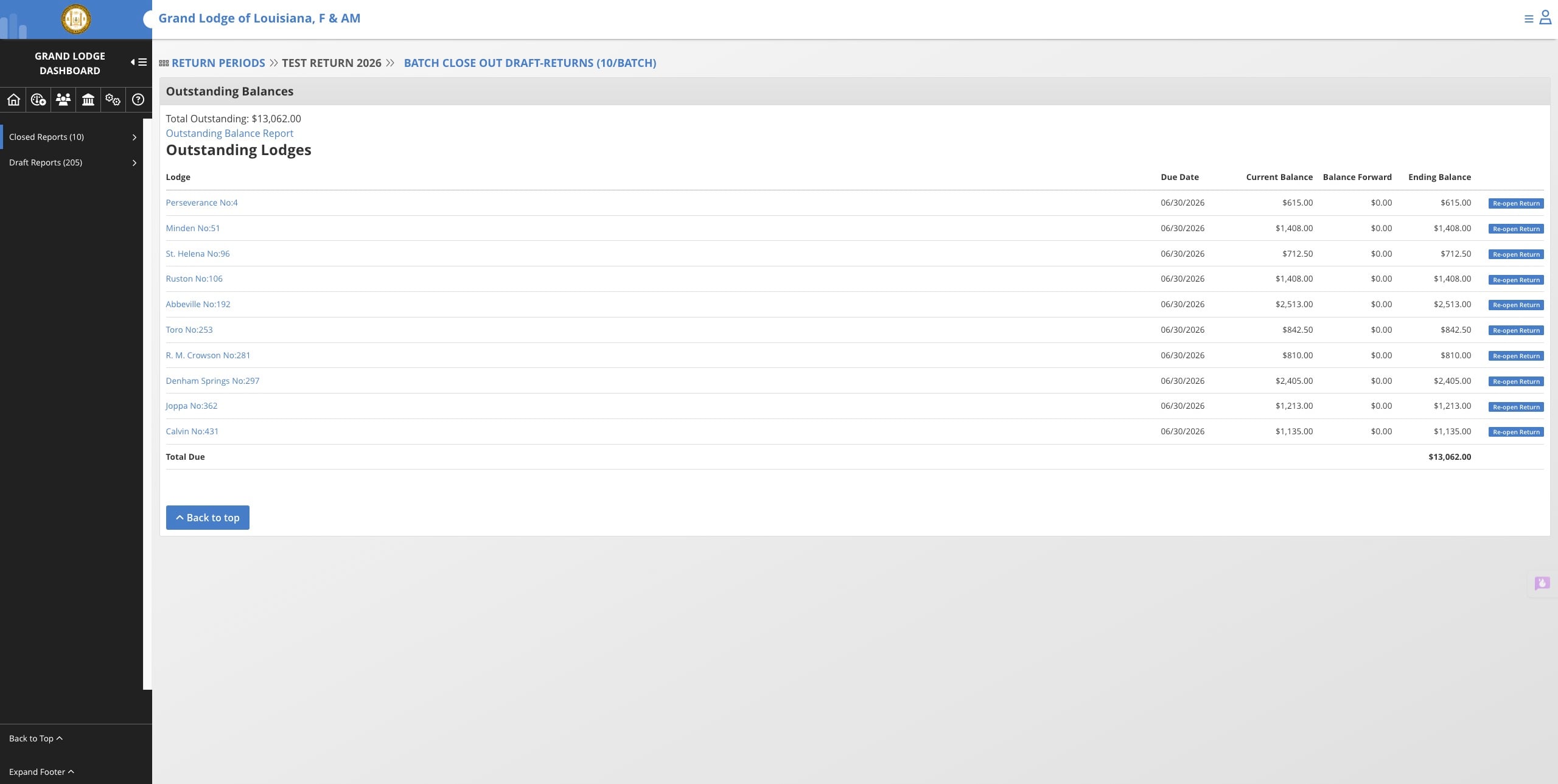
Click on "Batch close out draft-returns (10/batch)"
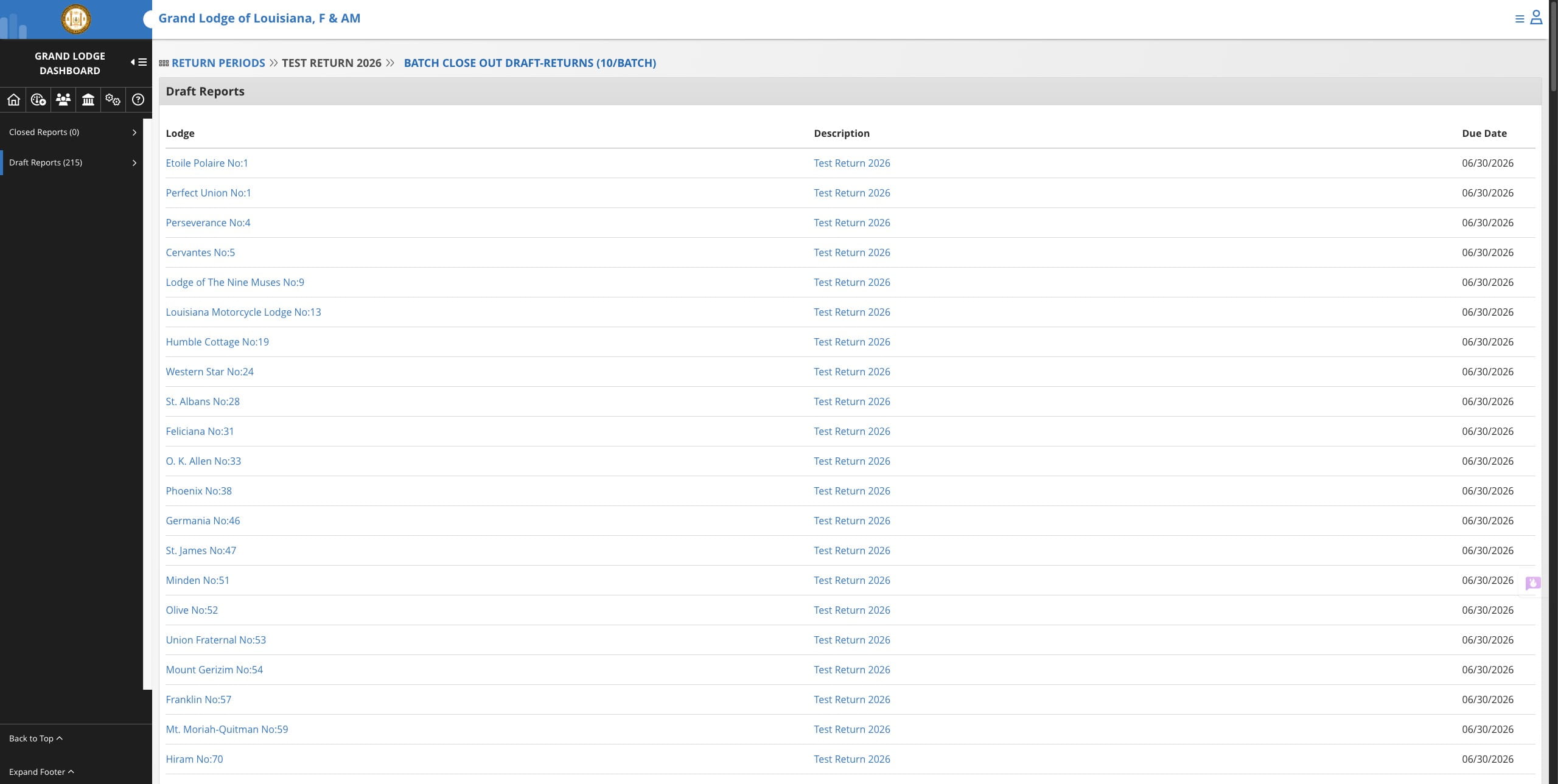
When using the 10/Batch closeout method the system will randomly select 10 returns to close. Once you click the button please allow time for the system to process as some can take longer than others. Due to the random nature the system selects returns to close we highly recommend only having one person closing the returns.
Repeat the process until all returns are closed. You can also click on the Batch Close option from the Closed Report page to save time.
If you get an error page it's OK! Just navigate back to the Annual Returns and you'll see that the returns have closed.