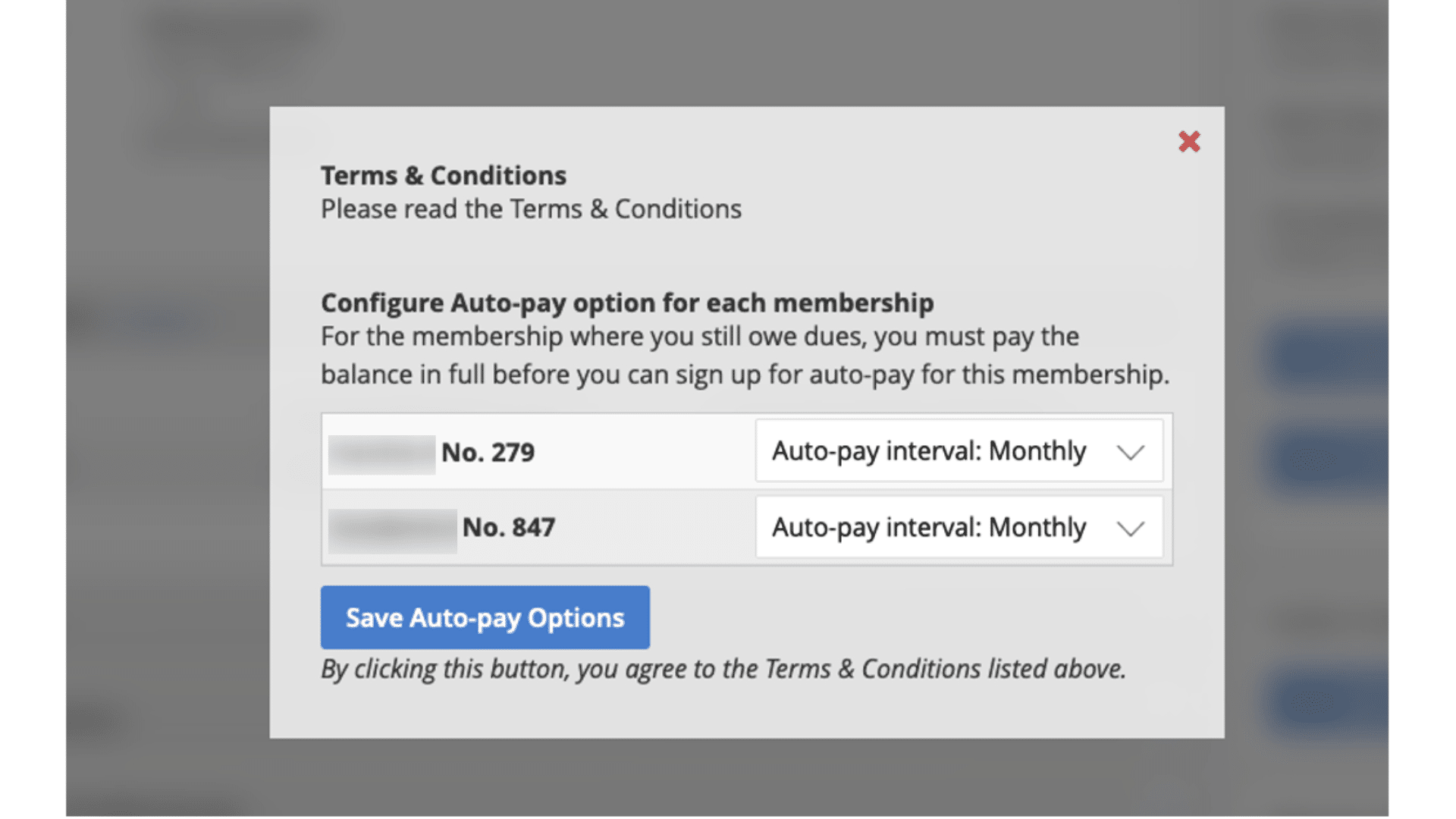
How to Set Up Dues Auto-Pay from Your Payment Confirmation Page
After paying your current year dues, you can set up automatic payments for future years to ensure you never miss a payment. This guide shows you how to enroll in auto-pay right from your payment confirmation page, add or use your saved payment methods, and configure your automatic payment preferences.
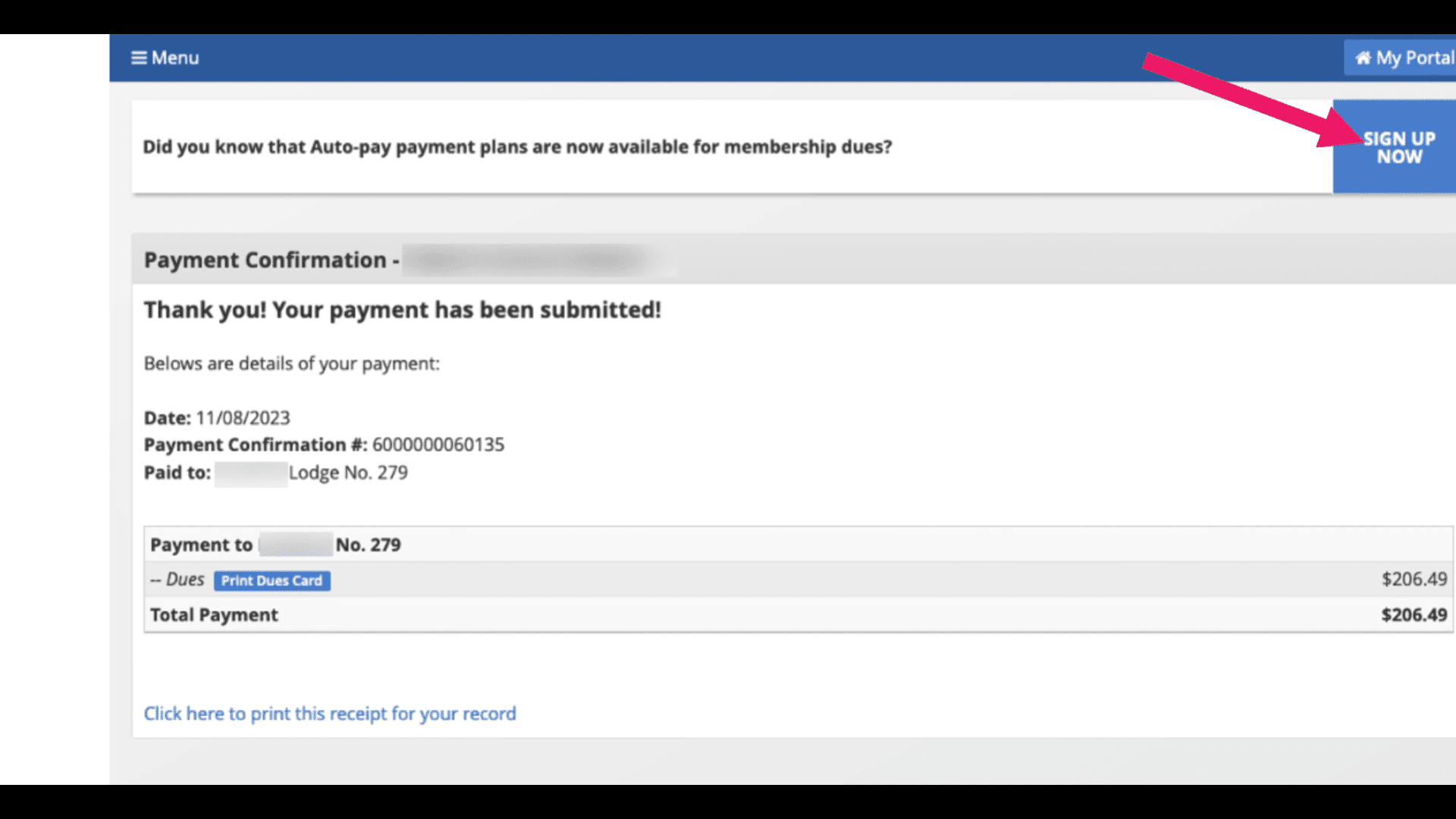
Members can sign up after they paid their dues on the confirmation page.
After members paid dues successfully, they are directed to the confirmation page where there will be a pop-up at the top to let them know about Auto-pay and to sign up.
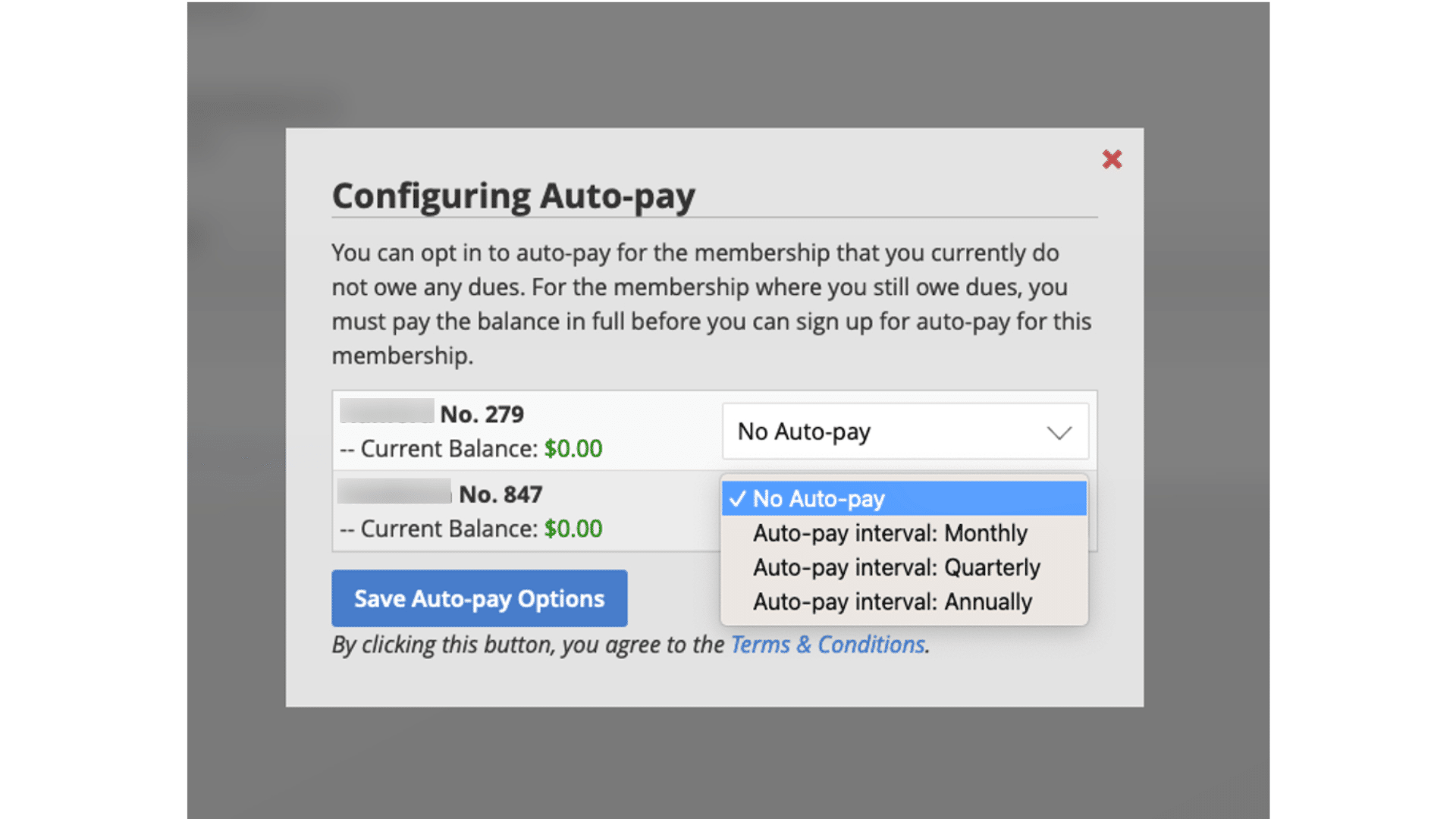
If the member already has a payment method saved, when clicking on the sign-up button, he is presented with the auto-pay configuration form.
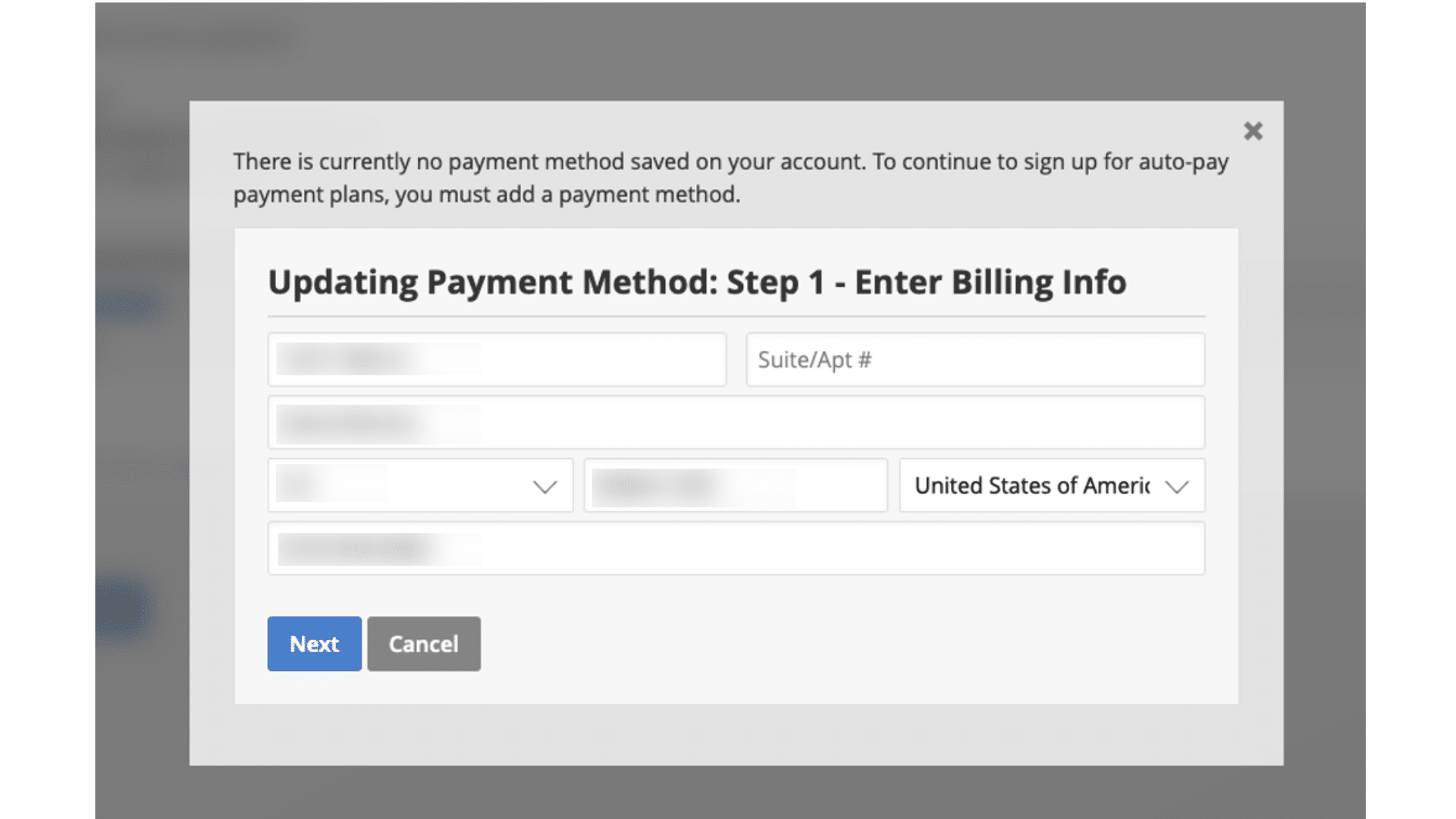
If the member does not have a payment method saved, when clicking on the sign-up button, he is presented with a different form to add a payment method first. Once he completes the steps to add a payment method, he is directed to the payment profiles page with the Auto-pay configuration section to set up auto-pay.
Completed Payment Profile
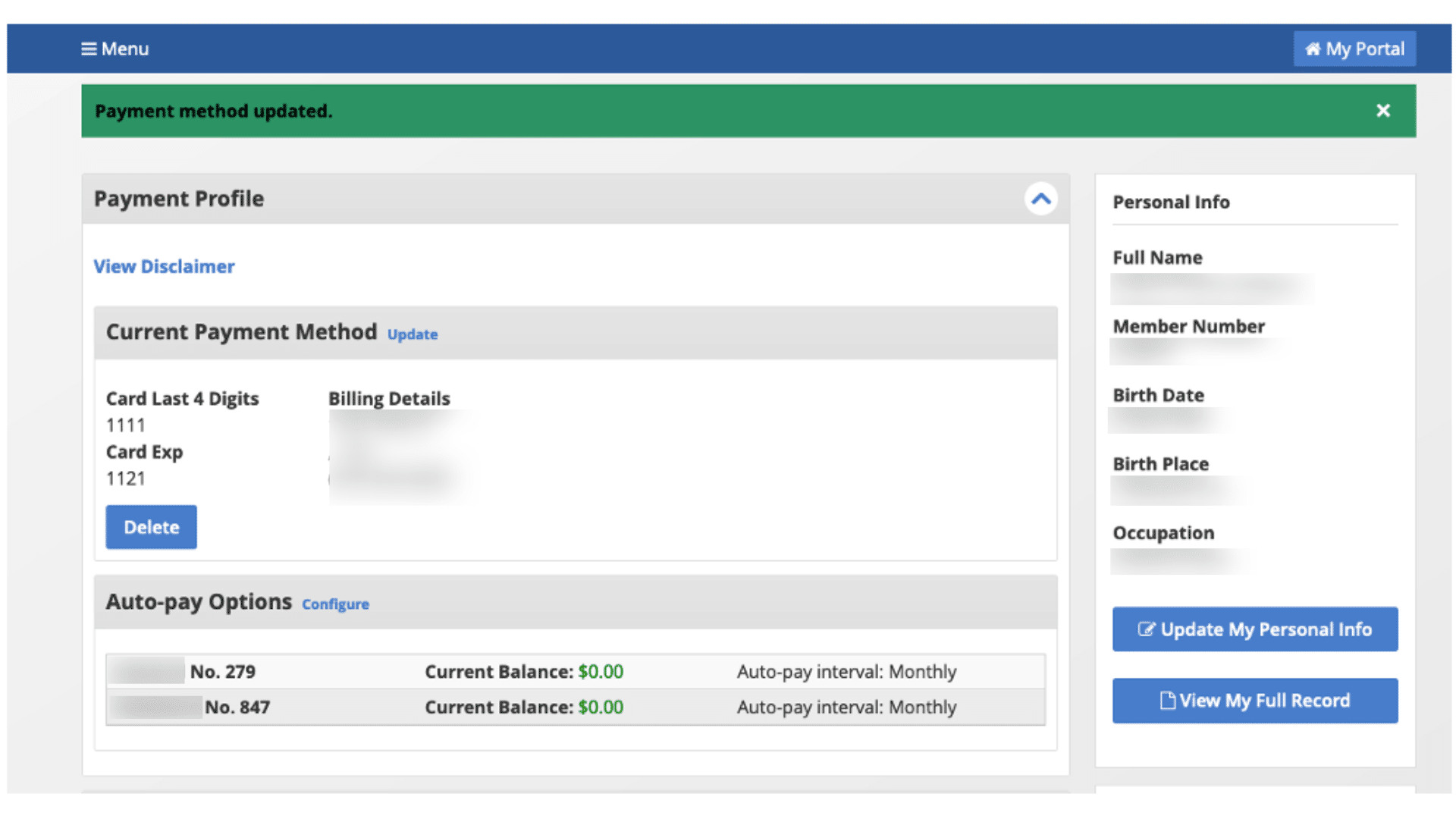
Can configure auto-pays differently if they are a member of more than one lodge.